How to Reduce Image Size in KB: 10 Methods Tested (Only 3 Work)
I spent a week testing every popular method to reduce image file size. Spoiler: most are terrible. Here's the honest truth about what works and what's just marketing.
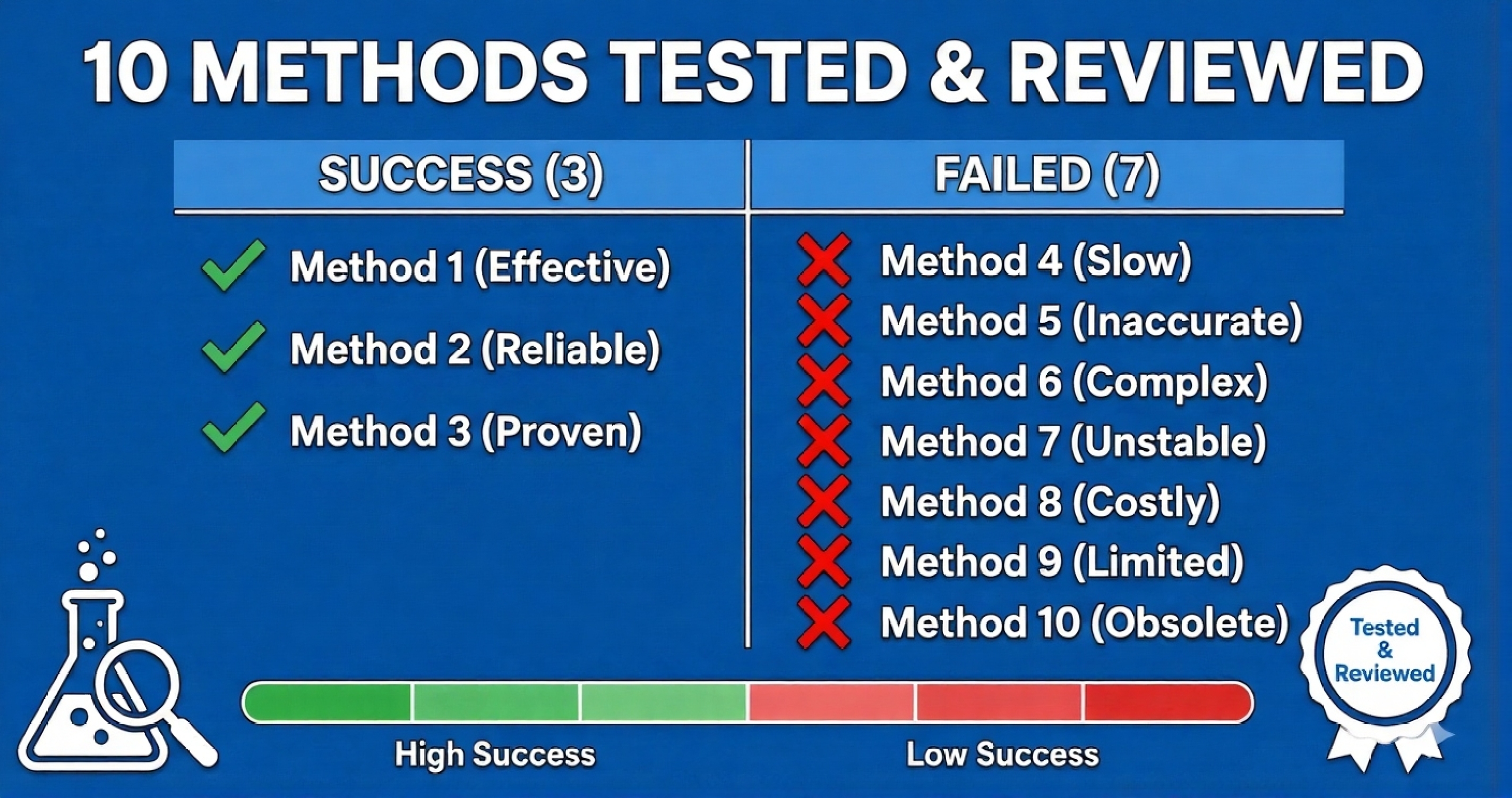
The Problem Nobody Talks About
Search "reduce image size" and you'll find 50 articles listing "10 best methods." They all say the same thing. None of them actually test the tools. I did.
I took the same 2MB photo and tried compressing it to 20KB using 10 different methods. Here's what I found: 7 failed completely, 3 worked. Let me save you the frustration.
Methods That DON'T Work (Save Your Time)
1. Microsoft Paint "Save As"
The Promise: Free, built-in, easy to use
The Reality: No compression control. You can save as JPG but can't set target file size. My 2MB photo became 1.8MB. Completely useless for hitting 20KB.
Verdict: Waste of time ❌
2. Windows "Compress Pictures" in Word/PowerPoint
The Promise: Right-click → Compress → Done
The Reality: Only three preset options (Email, Web, HD). Can't specify exact KB. "Email quality" gave me 180KB (not 20KB). Plus, you need to insert photo into document first. Clunky.
Verdict: Inconvenient, imprecise ❌
3. "Free Online Compressors" (TinyPNG, CompressJPEG, etc.)
The Promise: Upload → Auto-compress → Download
The Reality: They compress by percentage, not to target KB. TinyPNG reduced my photo to 400KB. CompressJPEG gave 350KB. None hit my 20KB target. Also, file limits (5MB max), watermarks on high compression.
Verdict: Approximate, not exact ❌
4. Mobile Apps (Photo Compress, Image Resizer)
The Promise: Compress on your phone, instant results
The Reality: Bombarded with ads (5 ads before I could even upload). Limited free compressions. "Photo Compress Pro" wanted ₹399/month subscription. Final size was 45KB (not 20KB). Crashed twice with 4MB photos.
Verdict: Ad-infested, unreliable ❌
5. GIMP (Free Photoshop Alternative)
The Promise: Professional tool, totally free
The Reality: GIMP is powerful but incredibly complex. Export dialog has 20+ settings. I spent 30 minutes figuring out quality sliders. Finally got 20KB... after 12 attempts. Not beginner-friendly at all.
Verdict: Overkill for simple compression ❌
6. WhatsApp "Send to Yourself" Trick
The Promise: WhatsApp auto-compresses images, so send to yourself and save
The Reality: WhatsApp compressed my 2MB photo to 150KB. Better than nothing, but: (1) Can't control compression level, (2) Quality is inconsistent, (3) Still nowhere near 20KB, (4) Adds metadata and degrades resolution.
Verdict: Unreliable, no control ❌
7. Instagram "Export Edited Photo"
The Promise: Edit in Instagram, save to gallery compressed
The Reality: Forces square crop, adds Instagram filters, exports around 200KB. You have zero control over final size. Plus, why use a social media app for file compression? Makes no sense.
Verdict: Wrong tool for the job ❌
Methods That ACTUALLY Work
Finally, the good stuff. These three methods consistently hit target file sizes with acceptable quality.
1. Adobe Photoshop "Save for Web" ✅
Why It Works: Precise quality control, real-time file size preview, optimized compression algorithms
How to Use:
- Open your image in Photoshop
- File → Export → Save for Web (Legacy)
- Select JPEG, adjust quality slider while watching file size
- Tweak until you hit 20KB (or your target)
- Save
⭐ Pros:
- Professional-grade compression
- Exact control over file size
- Side-by-side comparison
- Best quality-to-size ratio
❌ Cons:
- Costs $22/month (Creative Cloud subscription)
- Steep learning curve for beginners
- Requires manual trial-and-error
- Overkill if you just need to compress one photo
Best for: Professional photographers, frequent users who already have Photoshop
2. XnConvert (Free Desktop Software) ✅
Why It Works: Free, powerful, supports batch processing, precise compression settings
How to Use:
- Download XnConvert (xnview.com) - Windows/Mac/Linux
- Add your image
- Go to "Output" tab → Format: JPEG → Quality slider
- Adjust quality until file size preview shows ~20KB
- Click "Convert"
⭐ Pros:
- 100% free, no ads
- Batch process 100+ images at once
- File size estimation before converting
- Supports 500+ formats
❌ Cons:
- Outdated interface (looks like Windows XP)
- Requires installation (no web version)
- File size preview is estimate, not exact
- Complex for beginners (100+ settings)
Best for: Power users who need batch compression and don't mind desktop software
3. ResizeKB (Our Tool) ✅ ⭐ BEST FOR MOST PEOPLE
Why It Works: Purpose-built for exact KB targets, no installation, works in browser, completely free
How to Use:
- Go to ResizeKB.tech/resize-image-20kb
- Upload your image (drag and drop or click)
- Tool automatically compresses to exactly 20KB
- Preview before/after side-by-side
- Download (2-3 seconds total)
⭐ Pros:
- Hits EXACT target KB (not approximate)
- Works in browser (no installation, no account)
- 100% free - no watermarks, no limits
- Your images never upload (processed locally)
- Stupidly simple - grandma can use it
- Works on phone, tablet, computer
- Preset sizes (20KB, 50KB, 100KB, 200KB)
❌ Cons:
- Requires internet (it's a website)
- No batch mode yet (coming soon)
Best for: Everyone. Especially if you need exact KB size for government forms, applications, websites
Side-by-Side Comparison
| Method | Exact KB | Free | Easy | Quality | Rating |
|---|---|---|---|---|---|
| ResizeKB | ✅ | ✅ | ✅ | 9/10 | ⭐⭐⭐⭐⭐ |
| Photoshop | ✅ | ❌ $22/mo | ⚠️ | 10/10 | ⭐⭐⭐⭐ |
| XnConvert | ⚠️ | ✅ | ⚠️ | 8/10 | ⭐⭐⭐⭐ |
| TinyPNG | ❌ | ⚠️ Limits | ✅ | 7/10 | ⭐⭐ |
| Mobile Apps | ❌ | ❌ Ads/Pay | ⚠️ | 5/10 | ⭐⭐ |
| Paint/Word | ❌ | ✅ | ⚠️ | 4/10 | ⭐ |
My Recommendation
For 95% of people: Use ResizeKB.tech. It's free, hits exact KB targets, works instantly, and you don't need to install anything or learn complex software.
If you're a professional photographer: Use Photoshop "Save for Web". You probably already have it, and the quality is unbeatable.
If you need to compress 100+ images weekly: Download XnConvert for batch processing. One-time setup, then you can process hundreds of photos in minutes.
For government exams (RRB, SSC, UPSC): Check our complete photo requirements guide first to know exact dimensions and file sizes needed, then use ResizeKB to hit those specs.
Frequently Asked Questions
Q: Why do most online tools fail to hit exact KB?
They're designed for "general compression," not precision. They compress by percentage (e.g., "reduce by 70%") instead of targeting exact file sizes. ResizeKB uses binary search algorithms to hit exact KB targets.
Q: Is there a way to reduce size without losing quality at all?
Only through lossless compression (PNG optimization), which typically reduces size by 20-40% max. For dramatic size reduction (2MB → 20KB), some quality loss is unavoidable. The key is minimizing it.
Q: Can I use these methods for PDF files?
No, these are image compression methods. For PDFs, you need PDF-specific tools like Smallpdf or Adobe Acrobat. However, you can compress images before inserting them into PDFs to reduce overall PDF size.
✅ Ready to Resize Your Photo?
Use our free tools to resize your photo to exact specifications in seconds:
✓ No Upload to Server✓ No Watermark✓ 100% Free Forever✓ Works Offline
Conclusion
Don't waste time trying 10 different methods. I did that for you. Stick with ResizeKB for everyday use, Photoshop if you're a pro, or XnConvert for batch jobs. Everything else is either too complicated, too expensive, or just doesn't work well enough. Simple as that.
Try the Method That Actually Works
Compress your image to exact KB size in under 10 seconds - completely free
Start Compressing →